Pull the right panel up beside the chat
The Workbench turns CrazyToad into an operator cockpit. You stay in the conversation and open a panel only when you need it: Preview and Attach view for visual QA, Files and Git for the source of changes, Terminal for focused checks, Spawn to start agents, Search and Problems to find issues, Scheduler to manage recurring work, Cost to watch spend, and Review to keep decisions close.
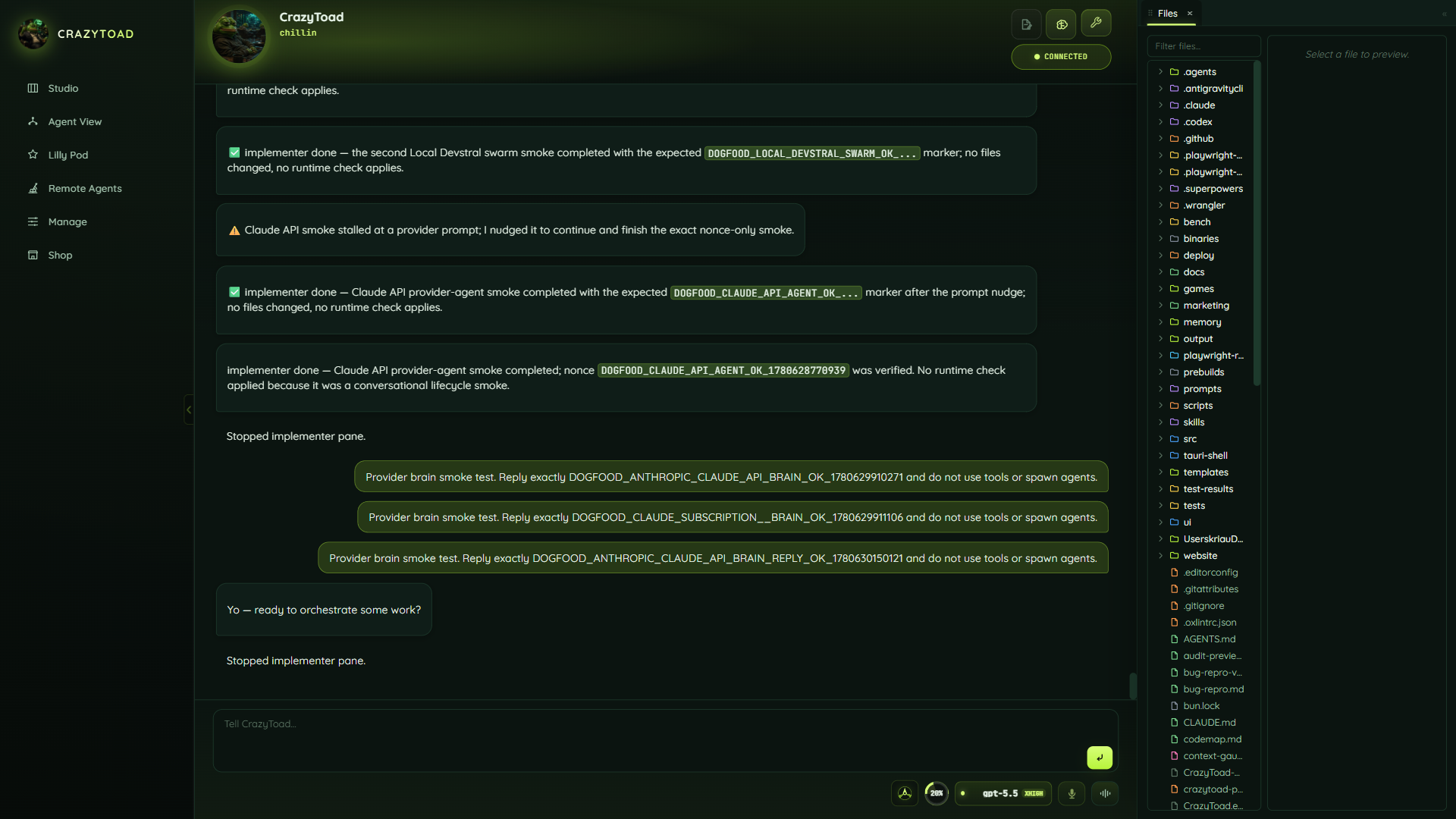
While you talk to Toad, open the panel you need from the Workbench dock. You don't leave the conversation to do it — the chat stays centered.
The panel opens alongside the conversation, not over it (the screenshot shows the Files panel docked open). Proof and discussion stay side by side, and Toad and agents can inspect the very same rendered page or file you see.
Use Preview for visual QA on a local page, Files and Git to read the source and review changes, and Terminal to run a focused check or script. Add Spawn, Search, Problems, Scheduler, Cost, or Review as the work calls for them.
Panels are on-demand, so dismiss one once the proof is captured and keep the surface focused on the conversation. Re-open it any time the next step needs it.