Wire a subscription first
Open Manage → Accounts. If the page is empty you will see “No accounts wired yet… Subscription Claude or Codex installs work without a key — billable APIs need a stored key.” The cheapest path is a first-party CLI login: you sign in once with the provider, and CrazyToad drives that session. No key to paste, and usage is tracked as token activity only.
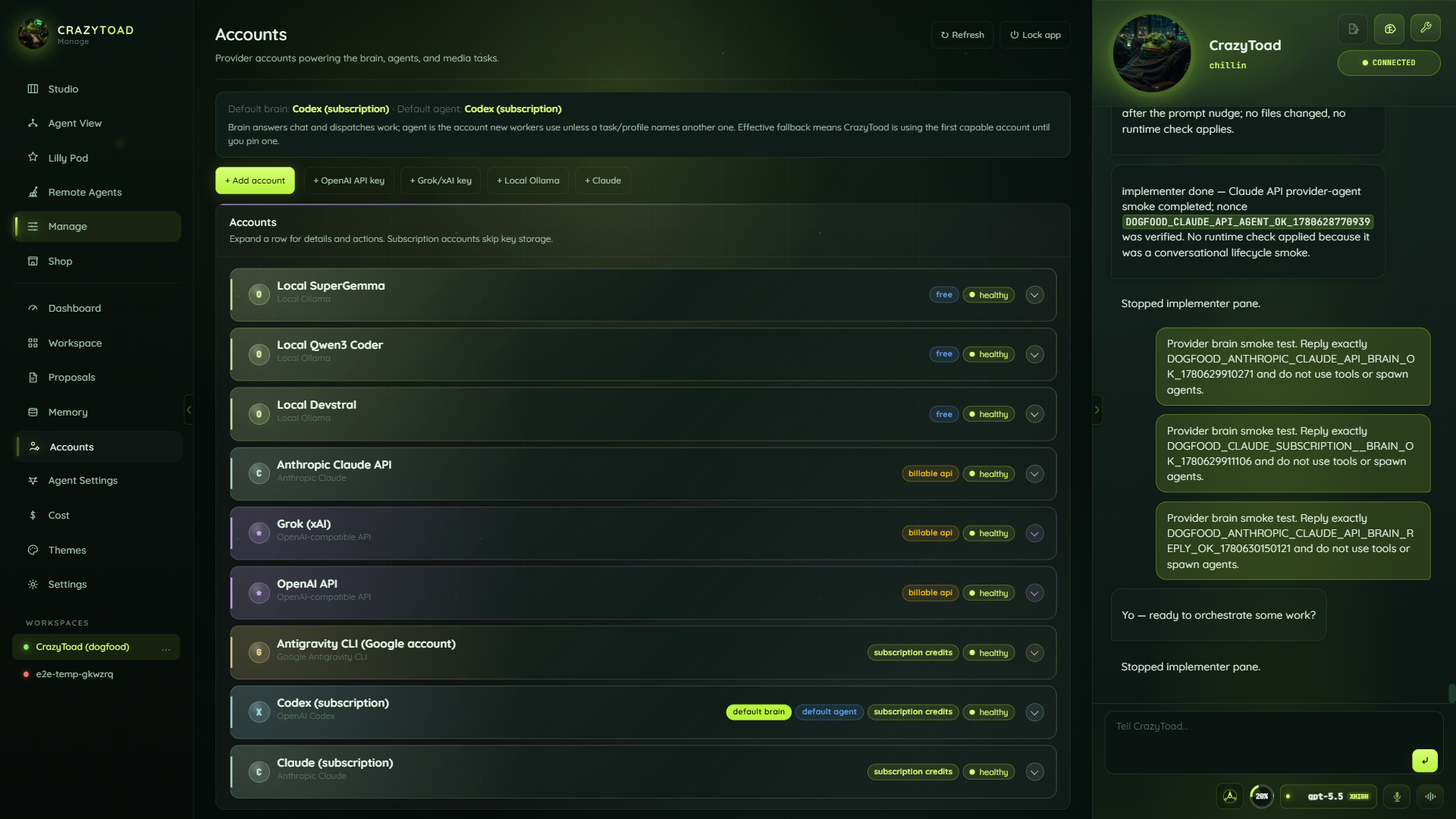
Go to Manage → Accounts. Find the card titled First-party CLI logins.
Click Claude (subscription) to run claude auth login, Codex (subscription) to run codex login, or Antigravity CLI (Google account) to run agy.
A window opens. Finish the provider’s own sign-in there — it is an OS-level interactive login, not a token you paste.
The new account appears as a card on the page with a health badge. Press Test model to confirm “CLI auth OK”.
Add an API key
Use a key when you want a provider that is not a local CLI subscription — an OpenAI-compatible endpoint, Grok/xAI, the Gemini API, or media models. Click + Add account (or a quick-add button like + OpenAI API key or + Grok/xAI key) to open the 4-step wizard: 1 Provider · 2 Endpoint · 3 Billing & key · 4 Models & roles. Step 2 only appears for OpenAI-compatible, Gemini, and local endpoints.
Under “What are you adding?” pick a tile (OpenAI API key, Grok/xAI key, Gemini API key, and so on). Choose the Provider kind and type a Label.
Pick an Endpoint flavor and a Provider preset (OpenRouter, OpenAI, Grok (xAI), and others) to pre-fill the URL, then confirm the Endpoint URL.
Set Billing kind. For Billable API, reuse an Existing stored key or paste a New key in the password field. Subscription, free, and local store no key.
Set the Model policy, type a Default model id, list Available models, then toggle Roles. For Gemini billable, Test connection must pass before save.
https://api.openai.com/v1; Grok/xAI https://api.x.ai/v1.AIza (Google AI Studio).Add a local model
Run models on your own machine through Ollama, LM Studio, vLLM, or llama.cpp. Click + Local Ollama (or pick the Local tile in the wizard). Billing is Free and no key is stored — you just point CrazyToad at the local endpoint and let it discover what you have installed.
Click + Local Ollama. Billing is already Free, so there is no key to enter.
Choose the Endpoint flavor (Ollama, LM Studio, vLLM, llama.cpp) and confirm the matching Endpoint URL.
Click Refresh models to pull the ids of the models you actually have installed from the endpoint.
Set the Default model to one of the discovered ids, e.g. qwen2.5-coder:14b or gemma2:9b.
http://localhost:11434/v1; LM Studio http://localhost:1234/v1.qwen2.5-coder:14b.Set defaults & route roles
Once accounts exist, tell CrazyToad which one to reach for by default and how to split work across roles. Each account card carries the default buttons; a separate Agent roles card maps individual roles to providers. Both auto-save.
On the account you want running the brain, click Set as default brain — or Use as brain, which adds the Brain role and makes it default in one step.
Click Set as default agent on the account that should handle ordinary agent work, so plain prompts have a predictable route.
In the Agent roles card, send each role (Implementer, Reviewer, Validator, Researcher, Designer, Security, and others) to a Provider (Claude, Codex, or Antigravity).
Per role, optionally set a Model (blank uses the provider default) and an Effort (Minimal, Fast, Standard, Deep, Max). Changes save automatically.