Back to guidesGuide 05

Manage is the operator console.

Manage holds the durable settings that should not clutter the chat. This guide shows you how to create a workspace and set its permission mode, then maps the rest of the console.

Control room

Everything that needs a durable setting

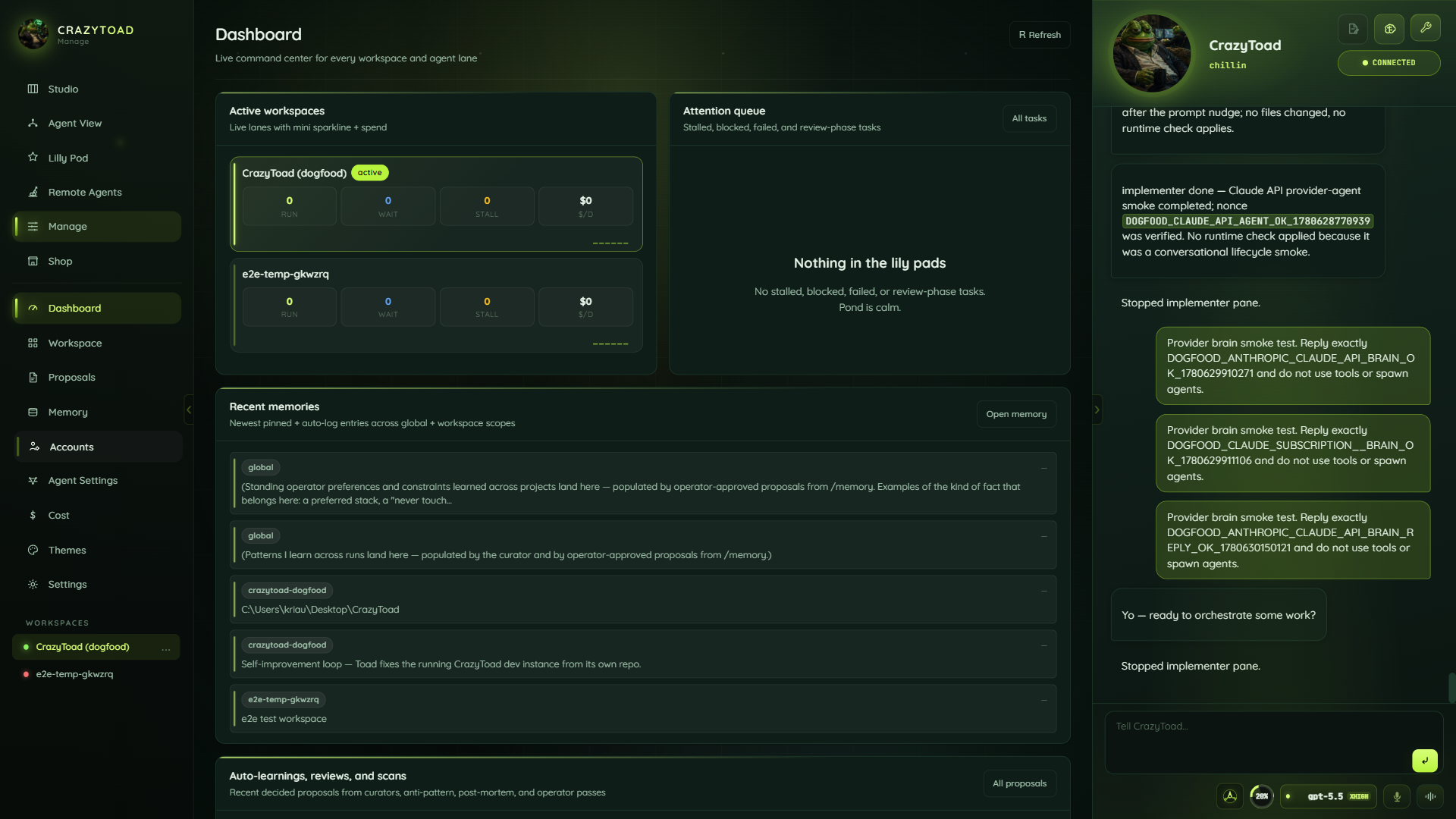
The Manage nav is intentionally dense. Dashboard shows the overview, Workspace has list and board views, Proposals queues operator decisions, Memory holds approved facts, Accounts wires providers, Agent Settings controls role routing, Cost tracks budget, Themes recolor the app, and Settings includes diagnostics export.
manage - dashboard
CrazyToad Manage dashboard with workspace status and attention queue
Dashboard with workspace status and attention queue
manage - accounts
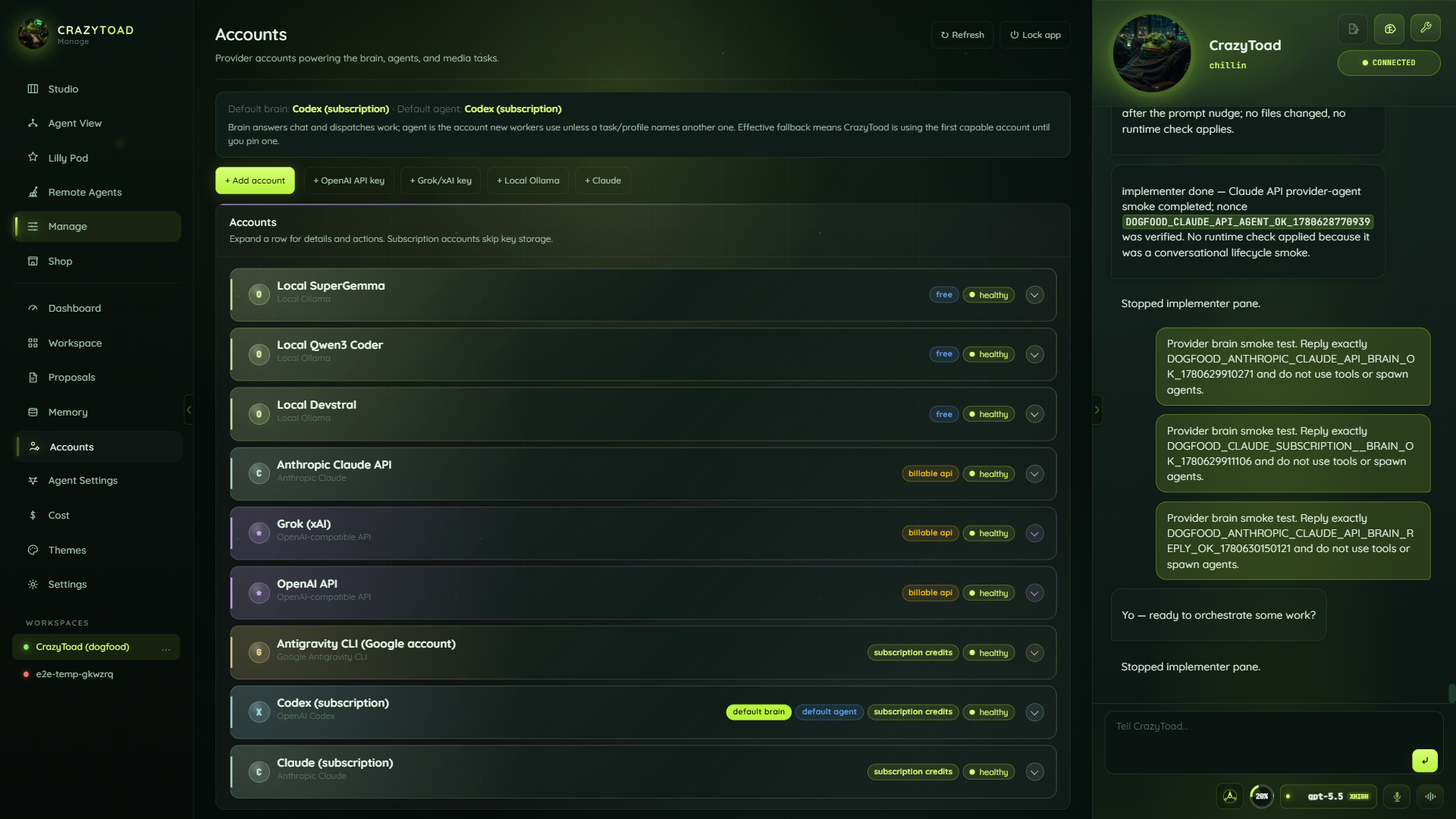
CrazyToad Manage accounts page with provider cards and health
Accounts, API keys, local models, defaults, and health
DashboardOverview and attention queue
WorkspaceList, board, and repo status
ProposalsPlans and changes awaiting decision
MemoryApproved facts and curator findings
AccountsProvider credentials and catalog
Agent SettingsRole routing and defaults
CostSpend and budget tracking
ThemesApp and pane palettes
SettingsWorkspace, global, and diagnostics
How to

Create a workspace

A workspace is one project CrazyToad works on. On first run the New workspace modal opens for you; later, open it from the workspace sidebar. The modal asks you to tell CrazyToad what you are working on, or just give it a name. Exactly one workspace is active at a time — switch by selecting another in the sidebar.

01
Pick a template

Choose a starting template from the card picker. It defaults to Blank, which is fine for most work.

02
Name it

Enter a Workspace name (required, up to 80 characters), for example auth-rewrite.

03
Choose where the code lives

Quick start drops a new folder on your Desktop. To work in an existing project, open Full setup and set a Project path, or expand Clone a git repo instead and paste a repository URL.

04
Create it

Use Quick start (name only) for the fast path, or Create workspace once you have filled in the full setup fields.

Workspace nameRequired, max 80 characters, e.g. auth-rewrite
Project pathAbsolute folder path, e.g. C:\Users\you\Desktop\app — use Browse… or + New on Desktop. Must be absolute or it is rejected
Clone a git repo insteadRepository URL such as https://github.com/owner/repo.git, then Clone
What are we building?A one-paragraph pitch that becomes the workspace description
Tech stack / constraintsLanguages, frameworks, and rules the agents must respect
Goals / done stateWhat finished looks like for this workspace
Quick start needs only a name and defaults the folder to your Desktop. Full setup is worth it when you want CrazyToad to understand the project up front.
How to

Set the permission mode

Each workspace has a permission mode that decides how much an agent may do without asking. Set it in Manage → Settings → Permissions under Workspace permission mode. New workspaces default to edit. The five modes form a ladder from read-only to unrestricted.

ObserveRead-only commands only — ls, cat, grep, git status / diff / log
SuggestRead-only; plans and proposes changes but writes nothing
Edit (default)Read-only plus write and file commands — mkdir, cp, mv, git add / commit / checkout
AutoEdit plus shell tooling — npm / pnpm / yarn / bun install, test, run, plus tsc, node, make, cargo, python
FullAny executable and network access, with no workspace boundary
Every mode shares a global deny: it blocks sudo, rm -rf /, git push --force, package publishing, and reads of secrets such as ~/.ssh and ~/.aws — even in full.